The Types of Computer Printers
Computer
printers
are categorized by how the ink gets splattered on the paper. Other
subcategories of printer are based on the printer’s features. Printers
fall into several general groups. Here’s the short list:
Inkjet, photo, and all-in-one: The
inkjet, photo, and all-in-one printers all use the same basic method
for putting ink on paper: Tiny balls of ink are lobbed directly on the
paper. Because the teensy-tiny ink balls stick to the paper, this type
of printer needs no ribbon or
toner cartridge.
Laser: Laser printers
are found primarily in the office environment, where they can handle
the high workload. The printer uses a laser beam to create the image,
similar to a photocopier, which uses an image reflection. The result is
crisp and fast
output, but not as inexpensive as the inkjet type of printer.
A laser printer that can print in color
is known as a color laser printer. The regular (noncolor) laser printer
uses only one color of ink — usually, black.
Impact: Impact printers
are few and far between these days, although once they were the
dominant type of computer printer. These printers are slower and noisier
than the other types of printers. They use a ribbon and some device
that physically bangs the ribbon on the paper. Because of that, impact
printers are primarily used now in printing invoices or multicopy forms.
They’re not practical for home use.
Use Page Setup to Troubleshoot PC Printing
The Print dialog box is where settings are made that affect how
things are printed, but it’s not the only place to look to try to
diagnose printing problems. Another location is the Page Setup dialog
box.
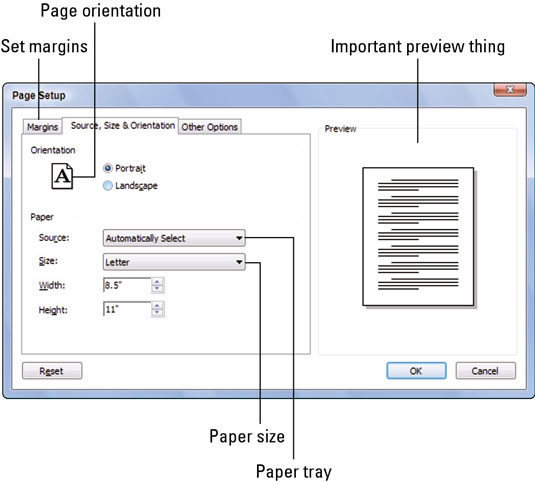 To access the Page Setup dialog box, choose the File→Page Setup command. In certain newer Windows programs,
the Page Setup command may be found on the File tab, which is the
leftmost tab above the toolbar. The Page Setup command may be on the
Print or Publish submenu on the File tab.
To access the Page Setup dialog box, choose the File→Page Setup command. In certain newer Windows programs,
the Page Setup command may be found on the File tab, which is the
leftmost tab above the toolbar. The Page Setup command may be on the
Print or Publish submenu on the File tab.
Though the Page Setup box may appear to have nothing to do with
printing, it has a lot to do with how the page you print is formatted,
including some items you might think would fall into the Print dialog
box but do not:
Margins: To set your document’s margins, you use the Page
Setup dialog box. In the Page Setup dialog box example, you click the
Margins tab to specify how far out the text is displayed on the page.
Paper size: When printing on a sheet of paper of a special size, you must use the Page Setup dialog box to set the paper size.
Paper orientation: Whether printing longways (landscape) or normal (portrait), you choose the page orientation in the Page Setup dialog box.
Paper source: When your printer has more than one paper tray, the source is chosen in the Page Setup dialog box, not in the Print dialog box.
Printing is the mechanical job of putting a document on paper
with ink. The duties of the Page Setup dialog box are document
formatting, not printing.
In some
applications, the Page Setup command on the File menu might be titled Document Setup.
Sometimes you access the Page Setup dialog box by pressing a button — for example, in the Print dialog box.
When you choose another paper size in the
Page Setup dialog box, don’t forget to stock your printer with the new
paper size. The printer’s display may remind you of the paper swap, or
it may not.
Not every printer is capable of printing to
the full edge of a piece of paper. Many printers cannot print within a
half-inch of the paper’s edge. Some printers can go farther, but usually
one edge of the page is necessary to help pull the sheet through the
printer. On that one edge, you must have a margin.
-

